A comprehensive how-to guide on how to install & configure product page upsells on Shopify store using AS Upsell & Cross-Sell.
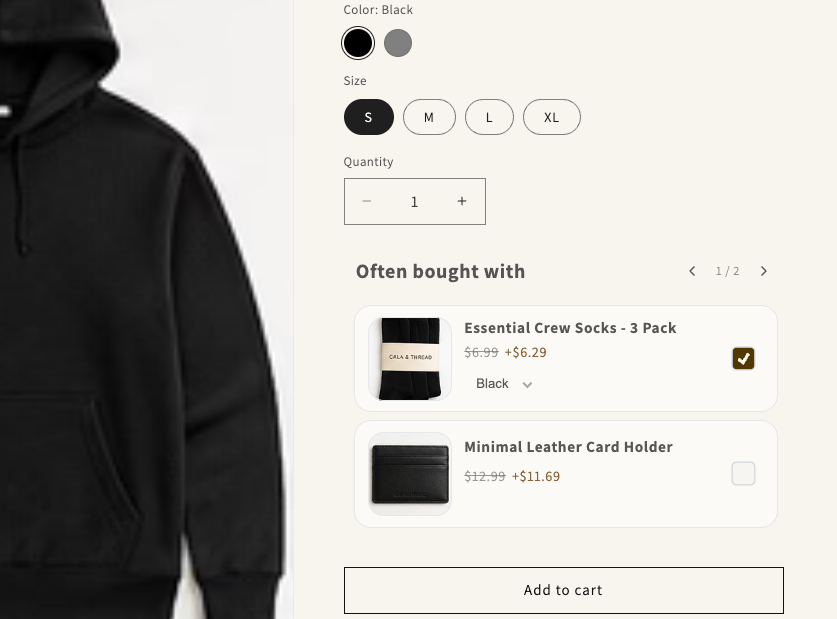
Helping your customers find what they need in your online store can be a challenge, and shoppers’ attention is limited.
Adding upsell products to your Shopify store is one of the most practical ways to increase product visibility and sales by suggesting useful related products and add-ons, frequently bought together offers, or discount-based offers directly on your product pages.
This is a comprehensive tutorial and reference on how to install and configure product page upsells on a Shopify store using AS Upsell & Cross-Sell App.
Bookmark this page so you have it to hand when needed.
In this tutorial, you will create a product page upsell offer that can display:
Before creating your offer, you need to do two things.
Install the app from the Shopify App Store
Once installed, you can create upsells, cross-sells, add-ons, quantity breaks, volume discounts, BOGO offers, and BXGY deals from one app.
For this guide, we’ll focus on product page upsells.
After installing the app, open your Shopify theme editor and add the app block to your product page template where you want the offer to appear.
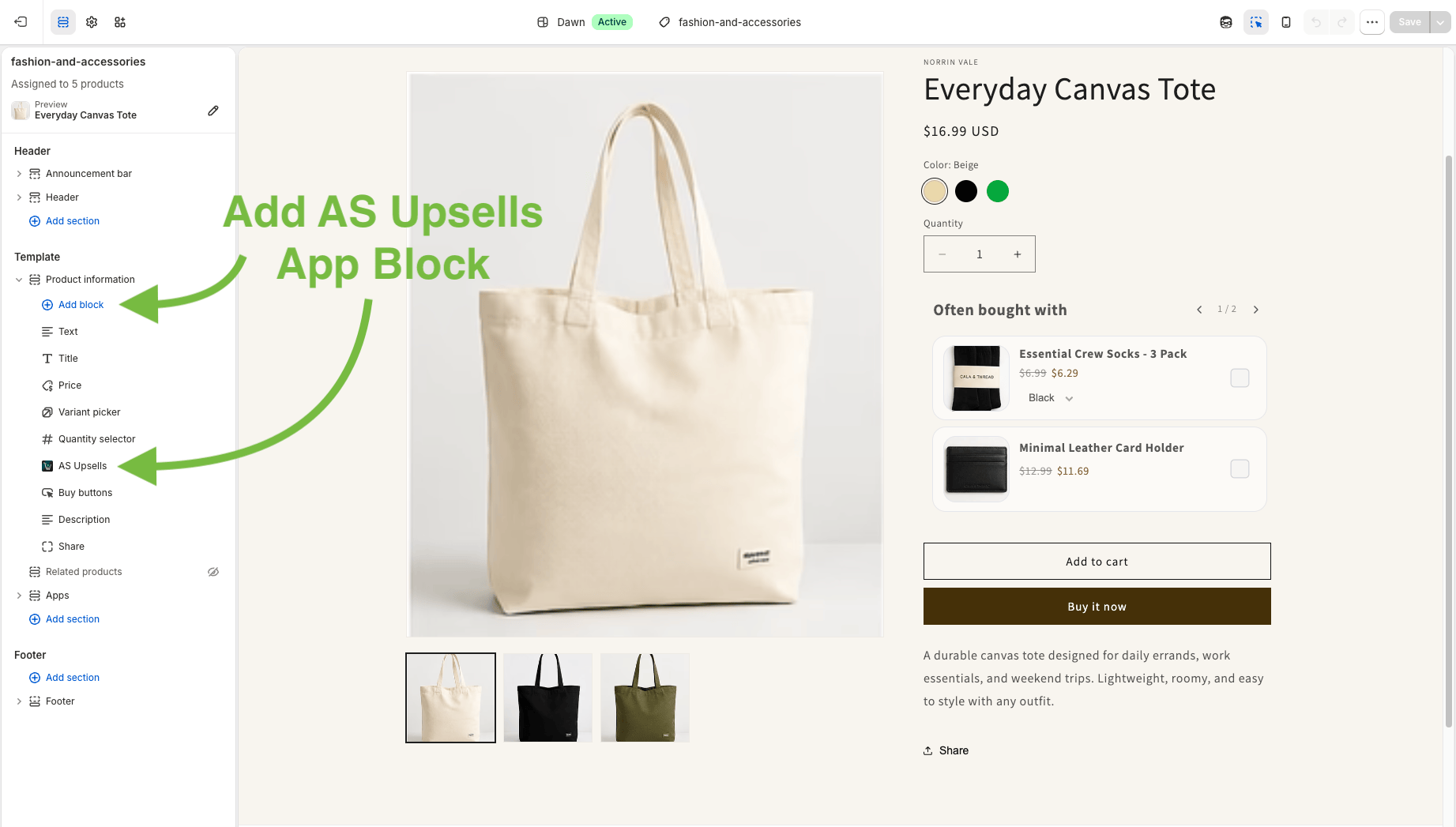
Once the app block is added, you can create and publish offers from the app dashboard.
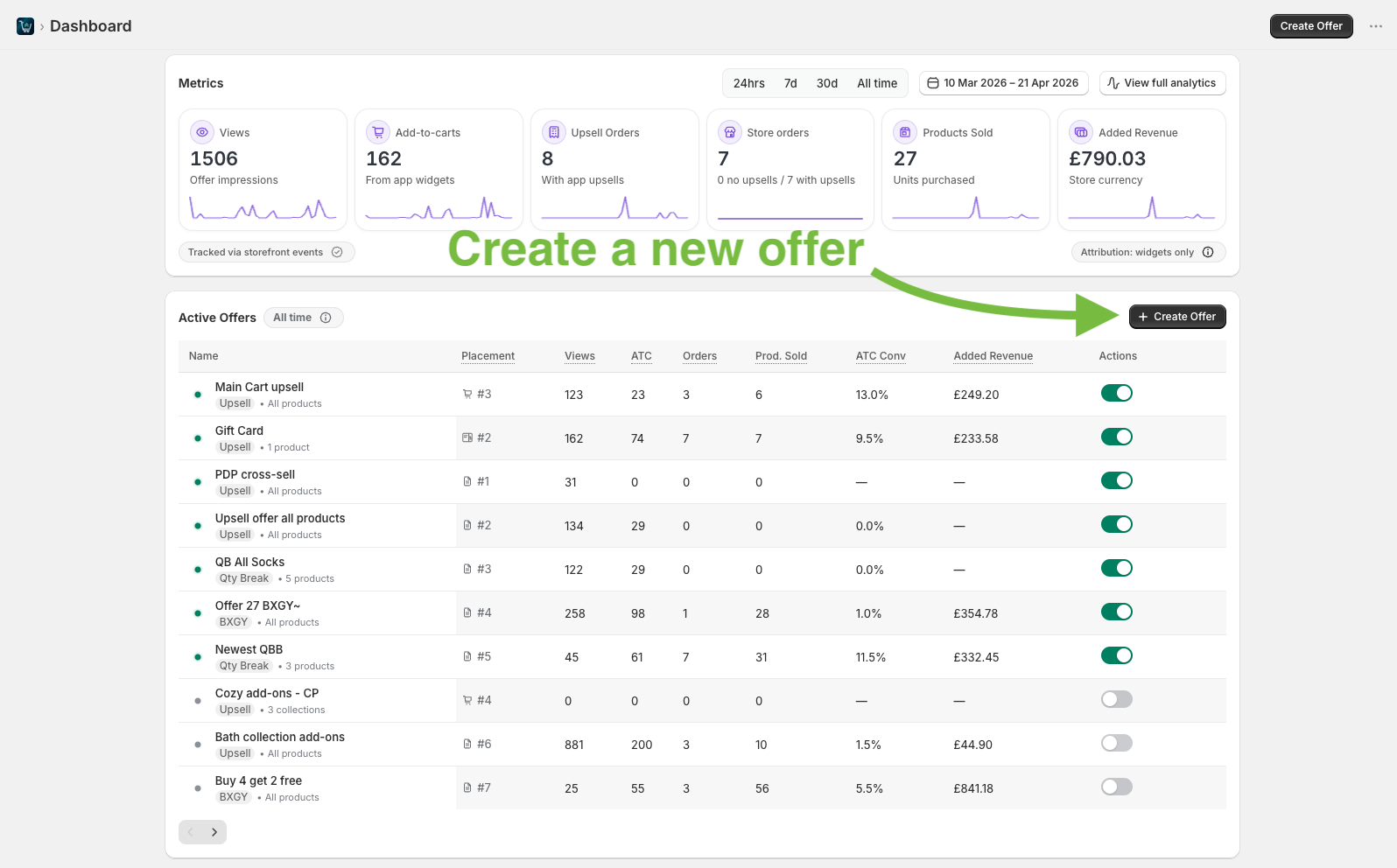
Open the AS Upsell & Cross-Sell App dashboard and click Create Offer.
Within the Product Page tab, choose Upsell & Cross-sell as your offer type.
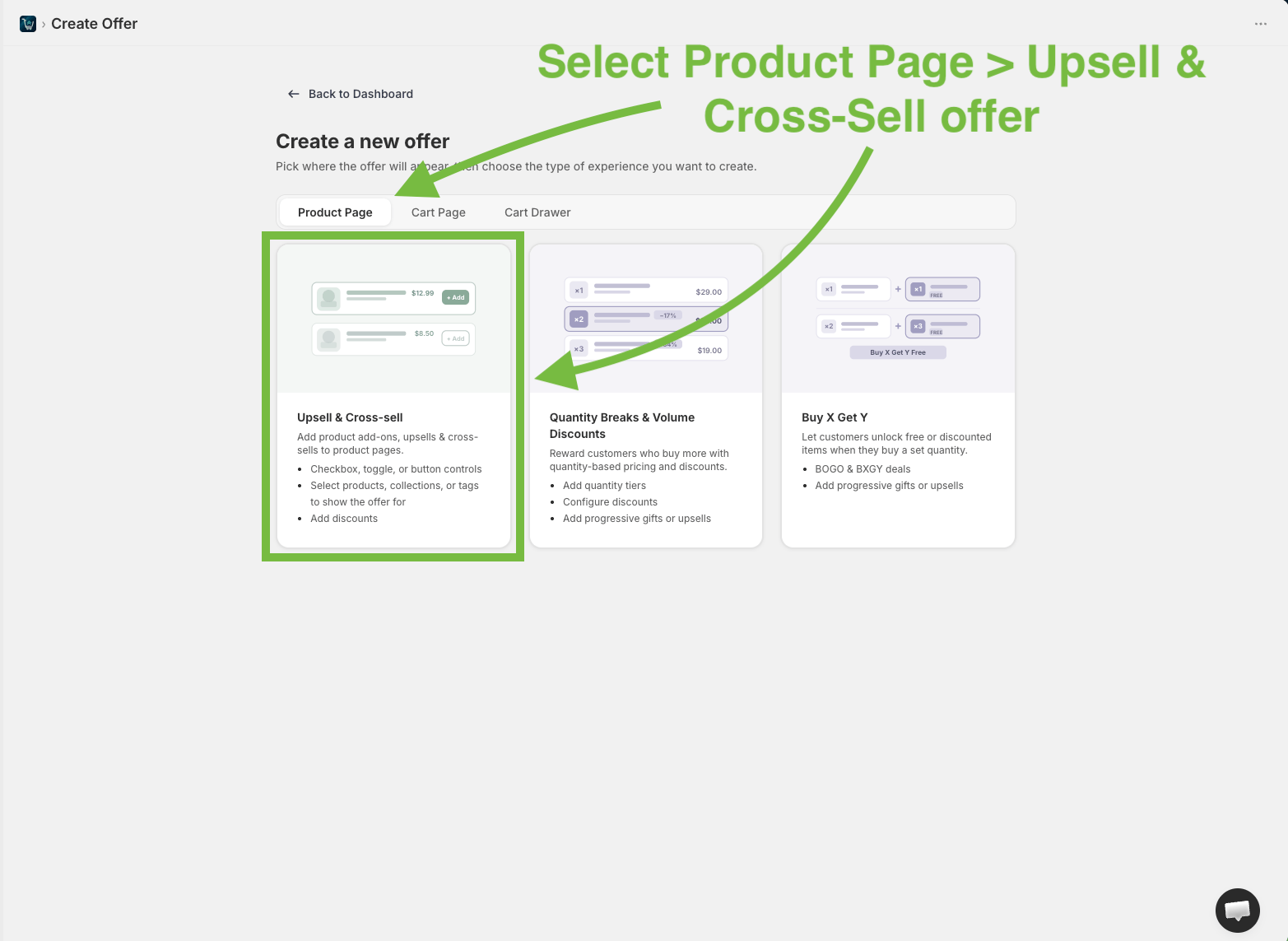
You can also create Volume Discounts & Quantity Breaks, BOGO, and BXGY offers in the app.
Click Add products and choose the products you want to show in your offer.
You can add up to 12 products.

You can add an optional storefront heading, and also control how many products are visible at once.
Set the Visible products between 1 and 4.
If you add more products than the visible products setting, the offer becomes a carousel automatically.
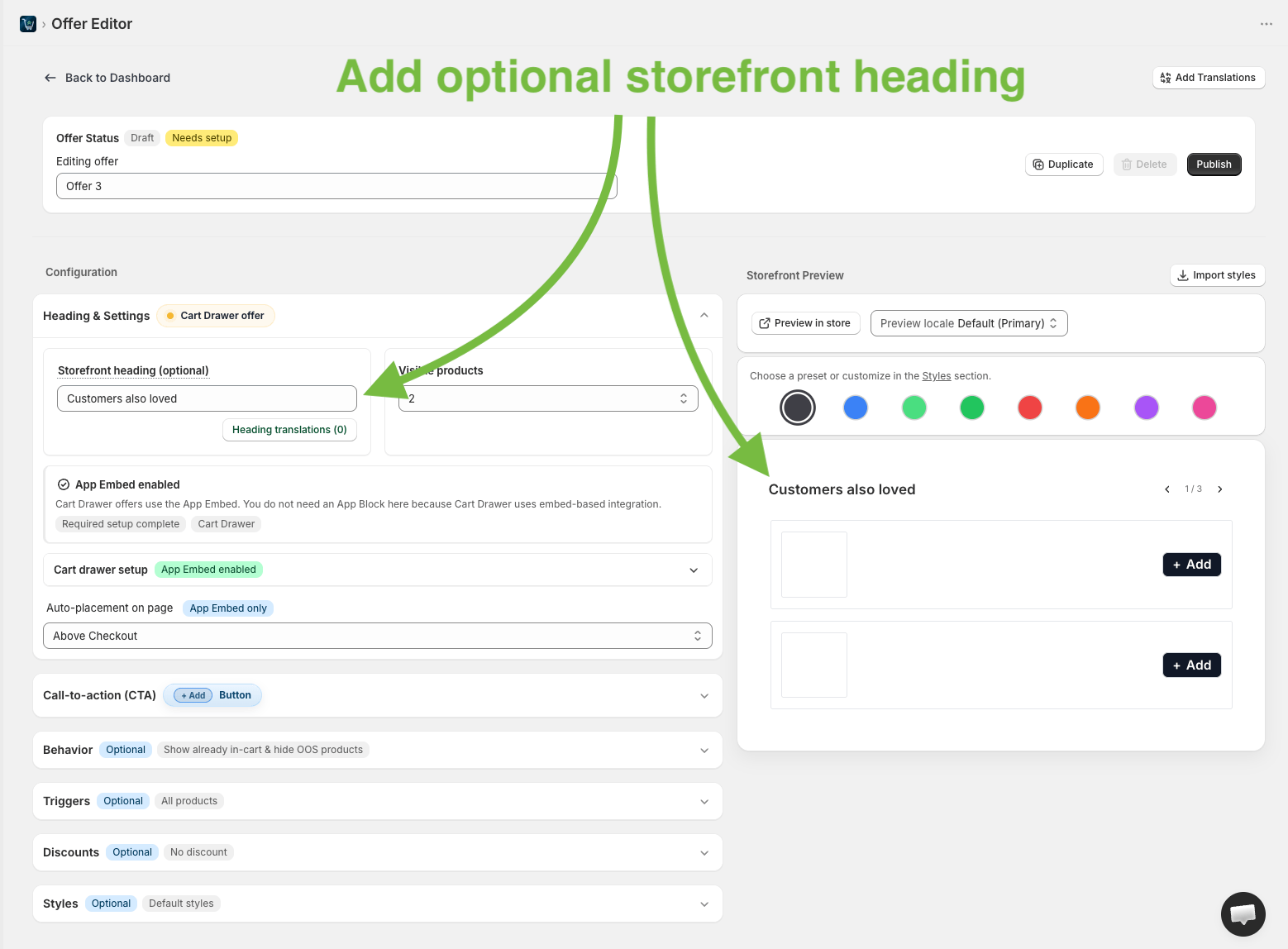
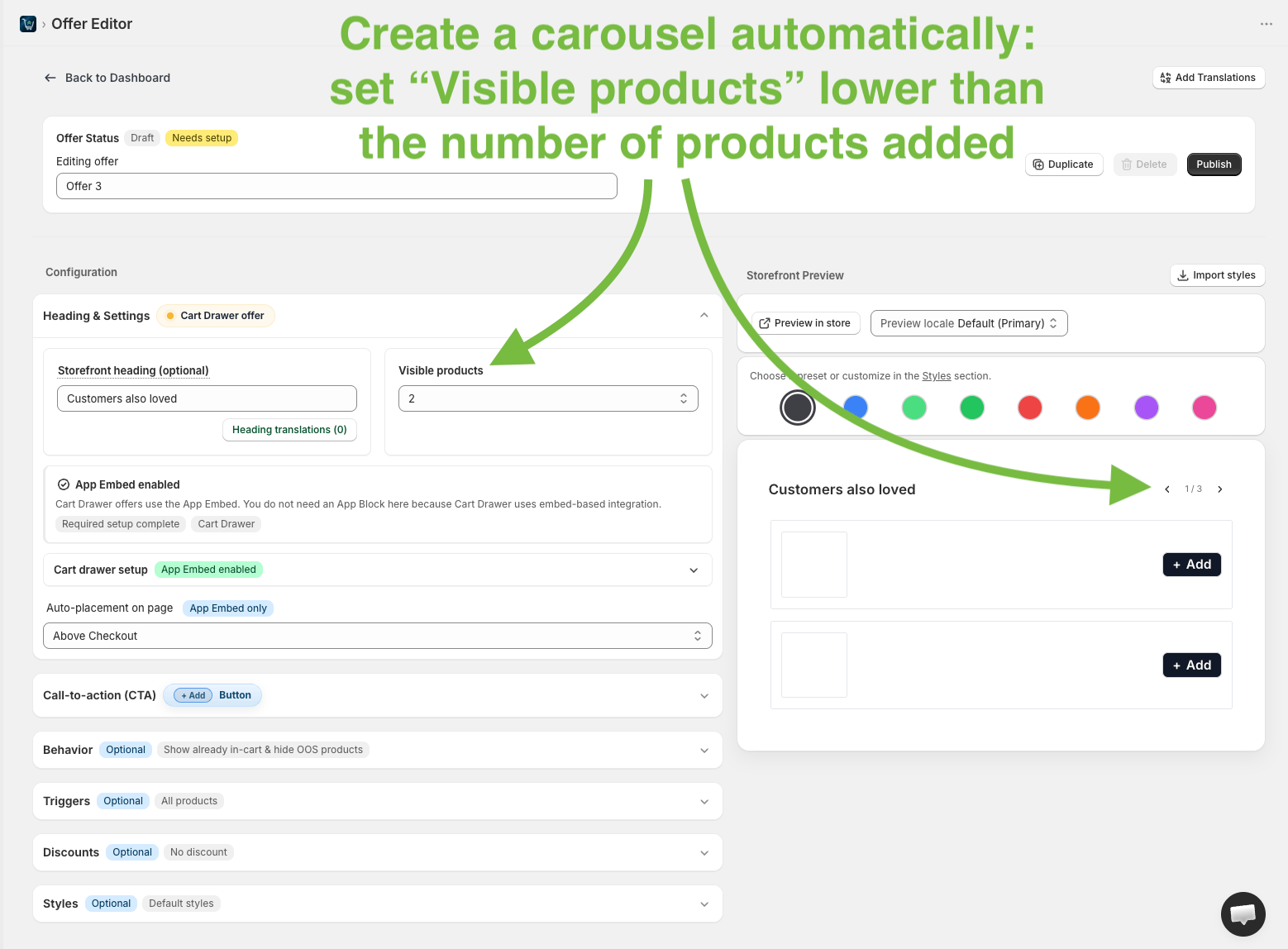
For example, if you add 8 products and set visible products to 3, customers can scroll through the offer as a carousel.
Next, choose how customers should add the upsell product.
You can use:

If you choose a checkbox or toggle, you can enable the Add with main product setting. This means the upsell product is added to cart when a customer adds the main product.
Additionally, you can enable Add as nested line item, which groups upsells with the main product in cart. If the main product is removed, the add-on is removed too.
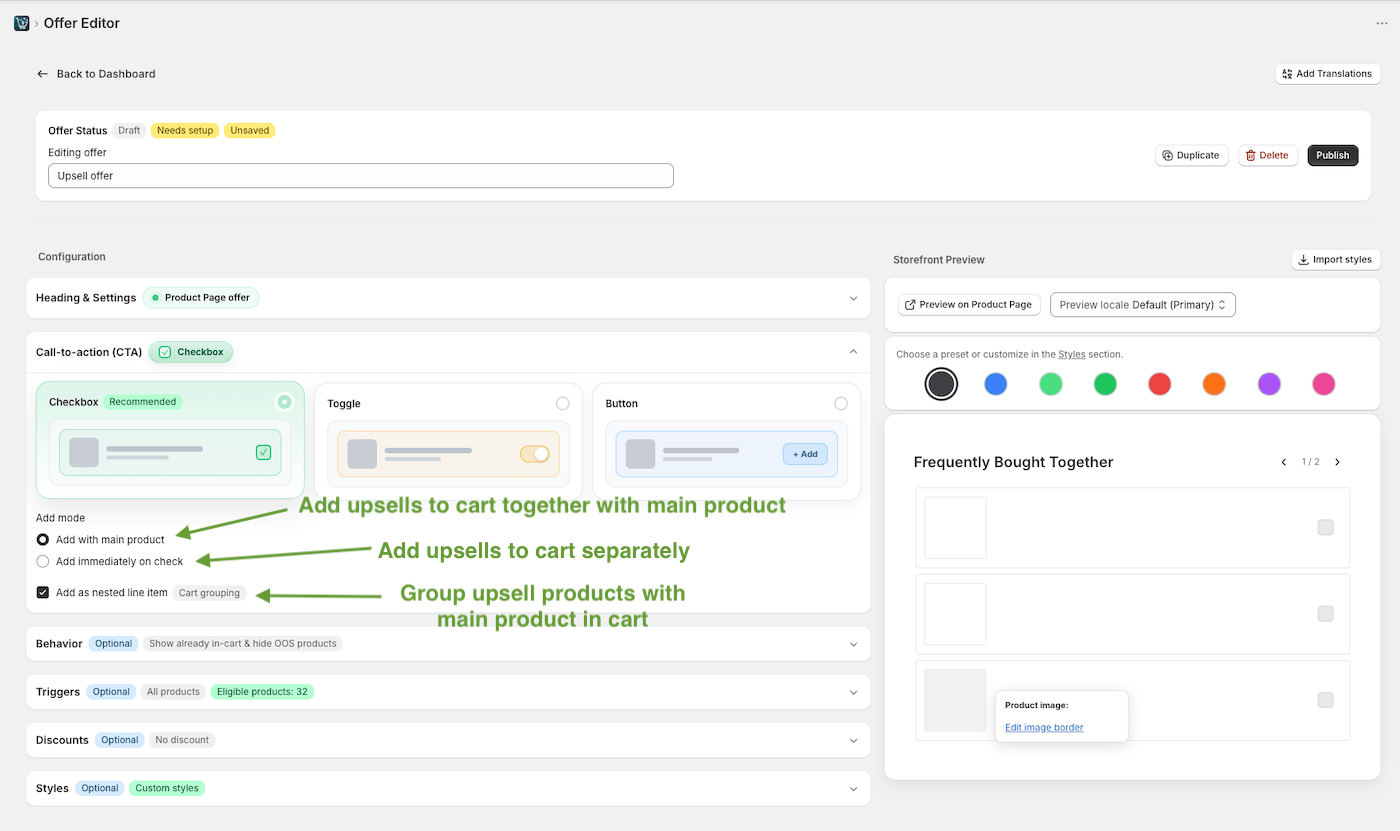
This is useful when the upsell should not be bought on its own.
For example:
It helps keep the offer tied to the product that triggered it.
To create more relevant offers, choose when the offer should appear.
You can trigger the offer visibility based on:
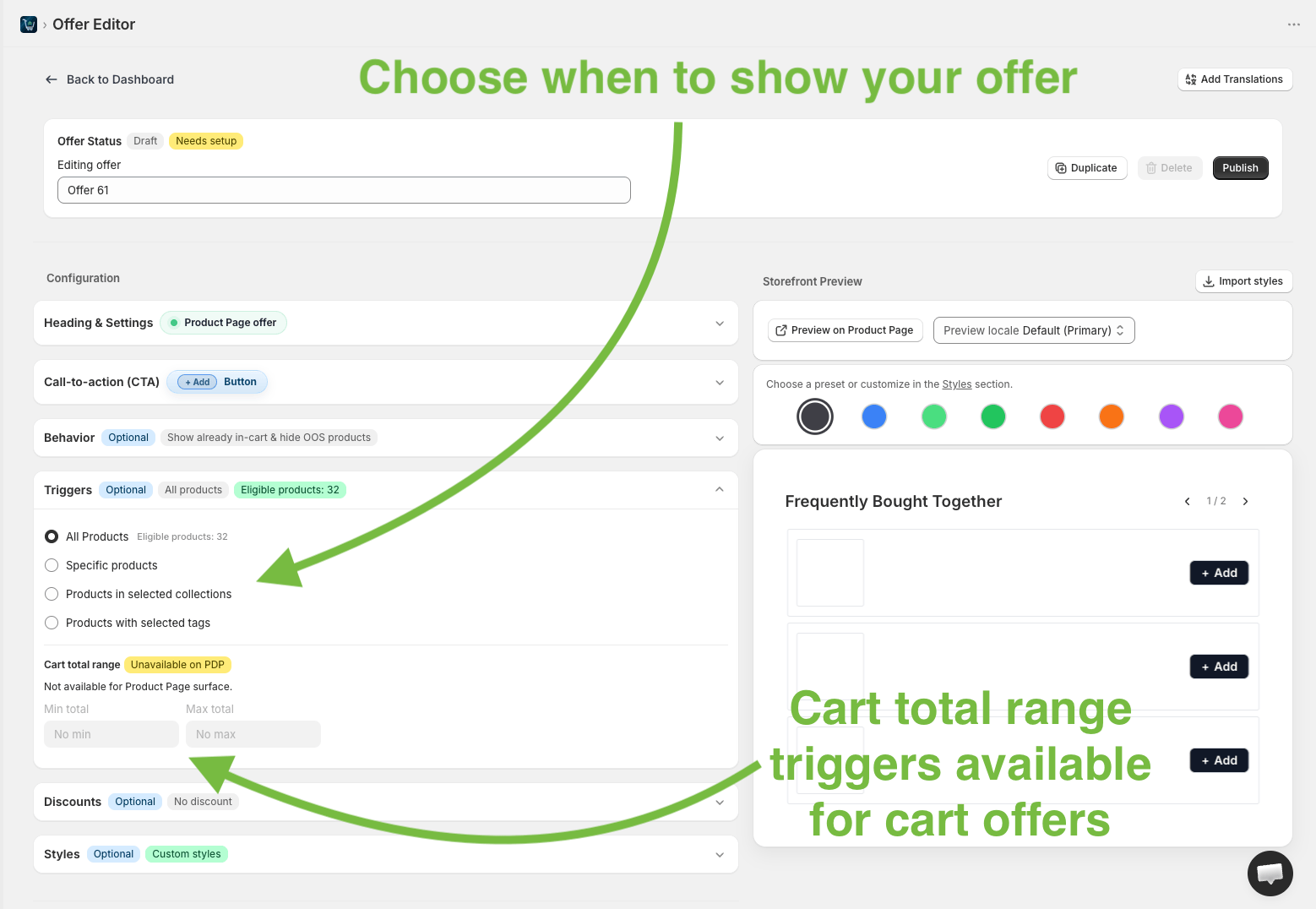
Offer relevance might help increase conversions.
For example:
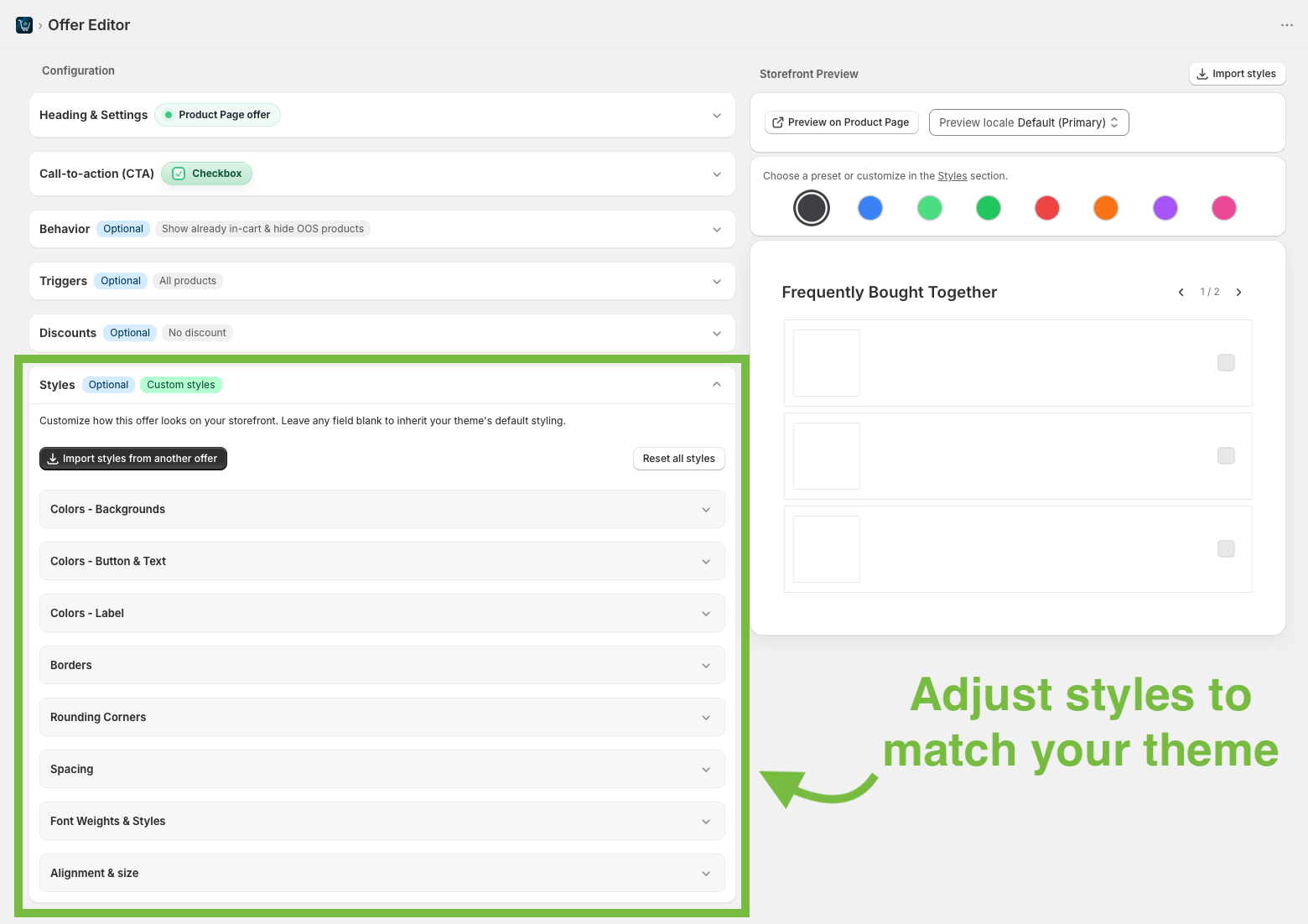
Next, optionally style your offer to fit your Shopify theme.
You can adjust text, colors, spacing, buttons, borders, badges, and other visual settings.
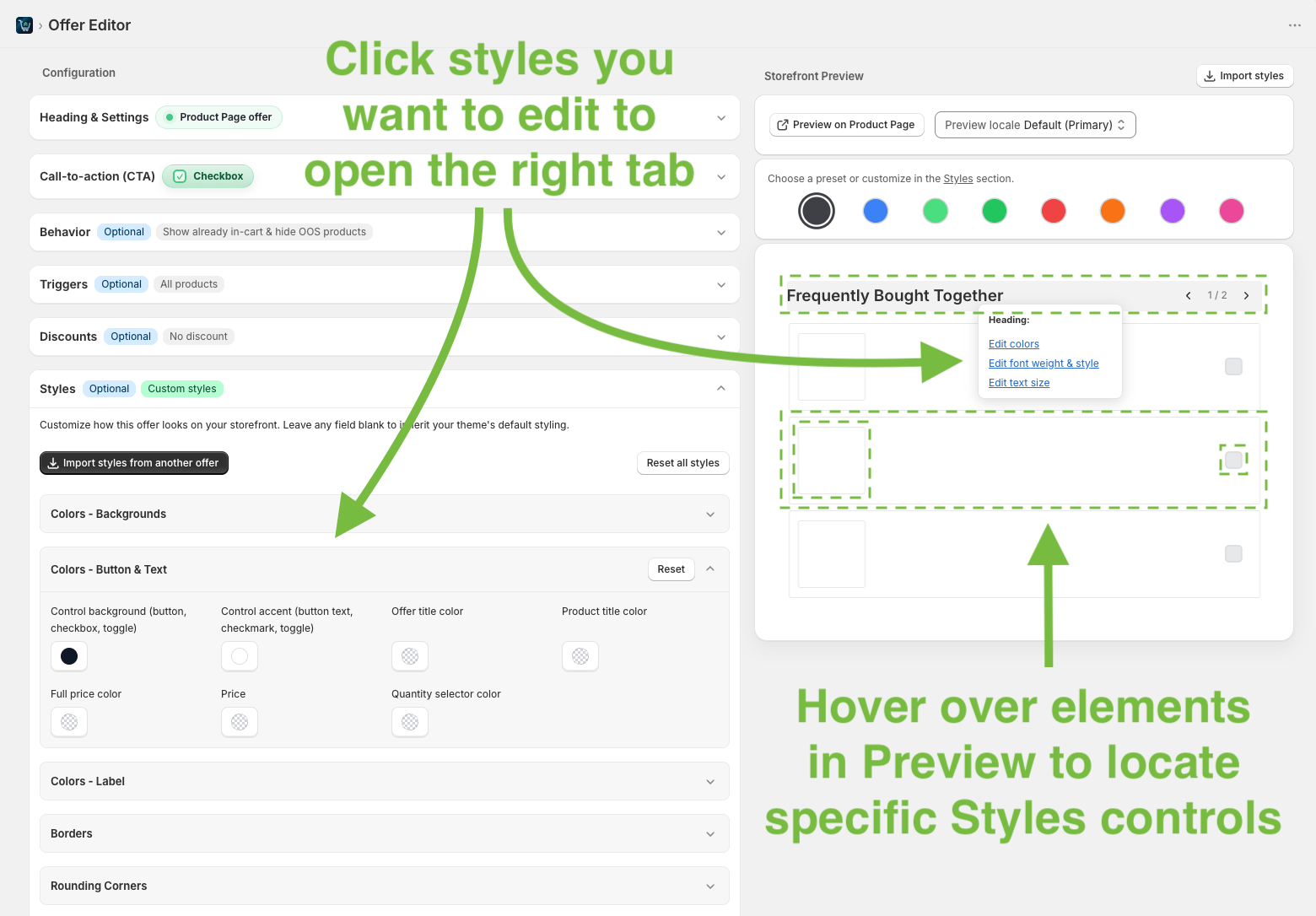
In the live preview, hover over any element to reveal the style section, and click on any setting to open it in the styles tab.
For example, hover over the title, and click the text size, font, or color setting linked to that element.
You can always come back to this later after publishing the offer in Step 8.
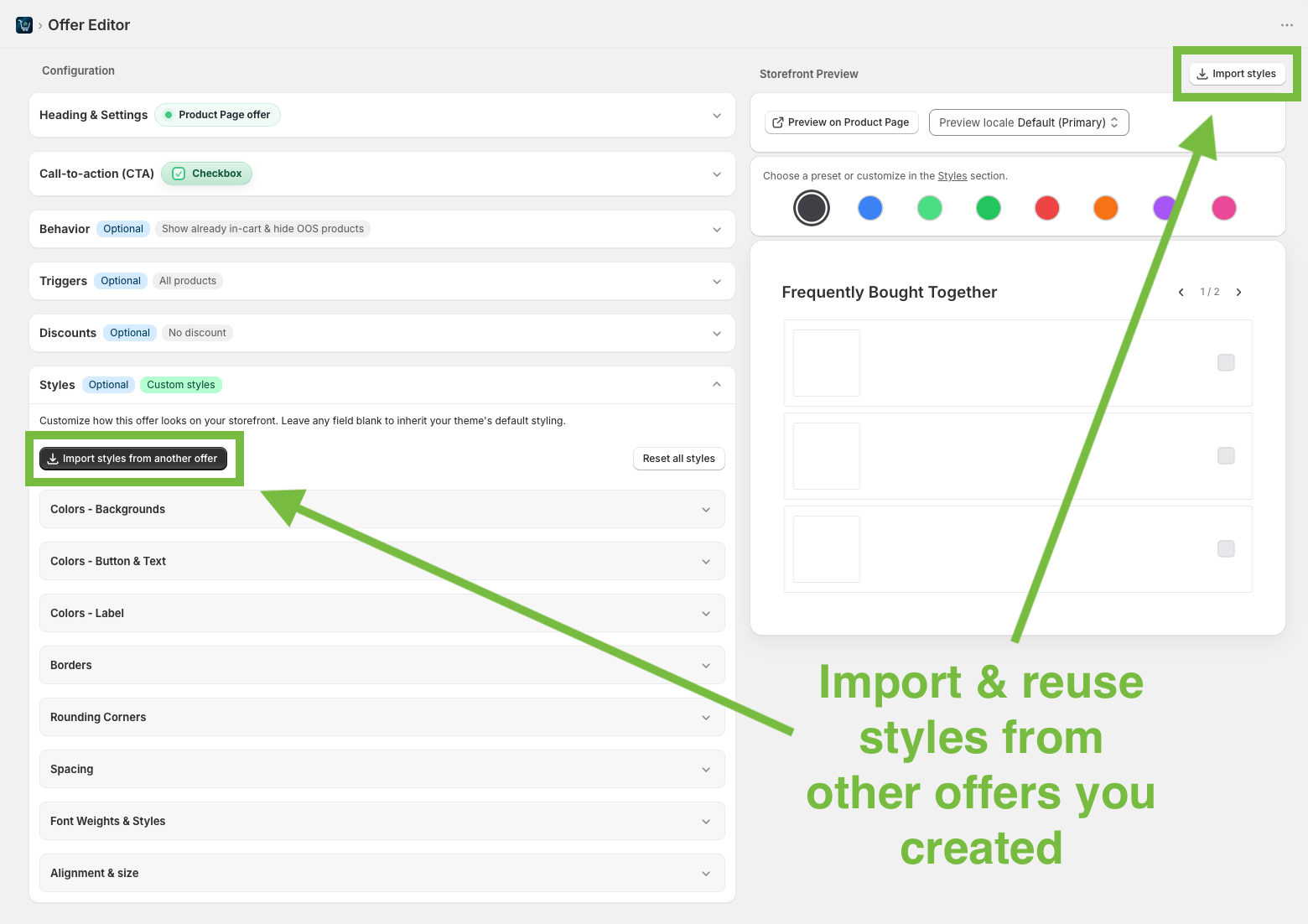
Once you have created at least one offer, you can Import styles to another offer to create new offers faster while maintaining visual consistency.
You can add a discount if you want to make the upsell more attractive.
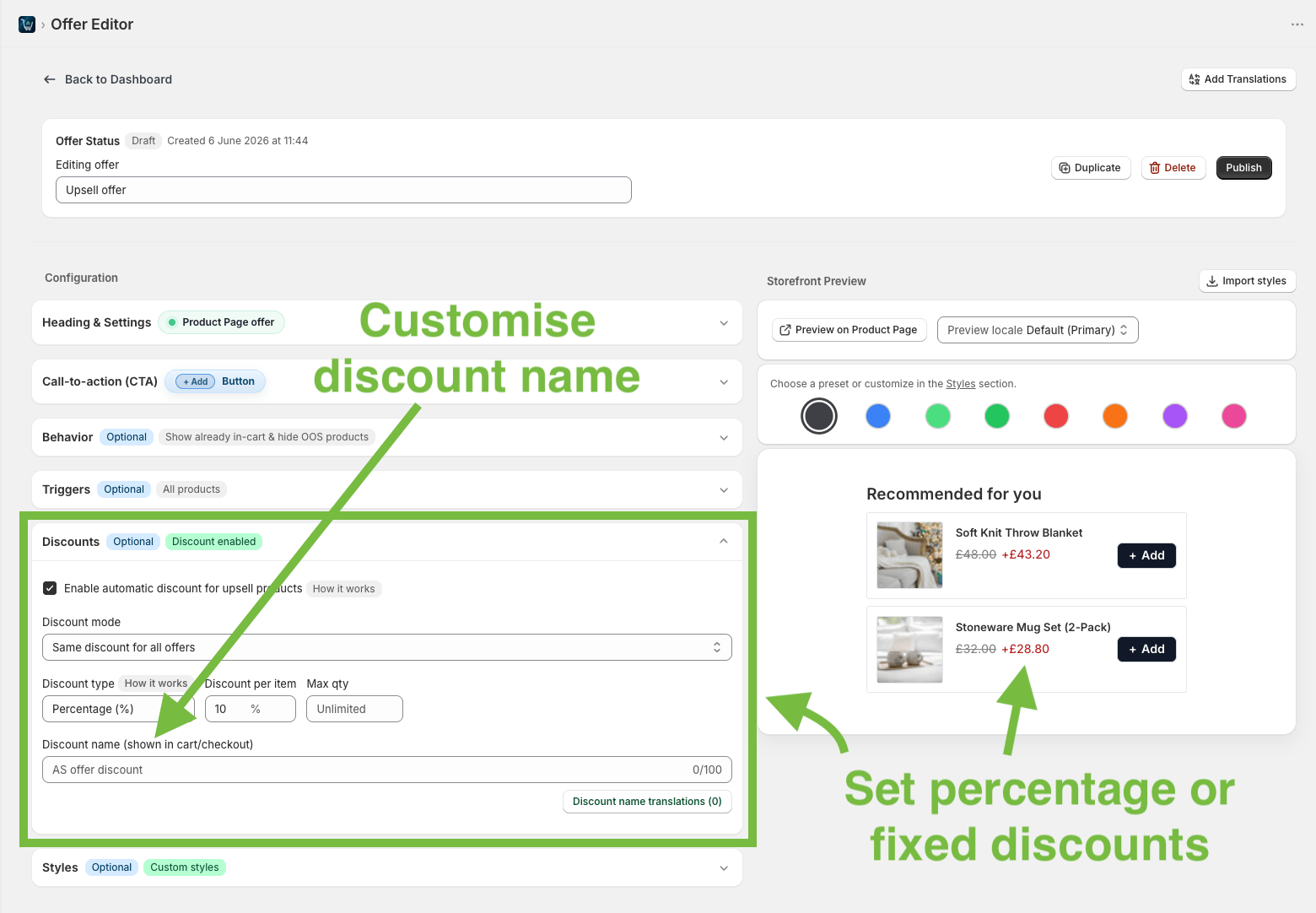
The discount only applies when the product is added to cart through this offer.
It does not change the price of this product in your shop. In other words, the discount does not apply when the product is added via other flows.
Once you’re ready, publish the offer and preview it on a live product page.

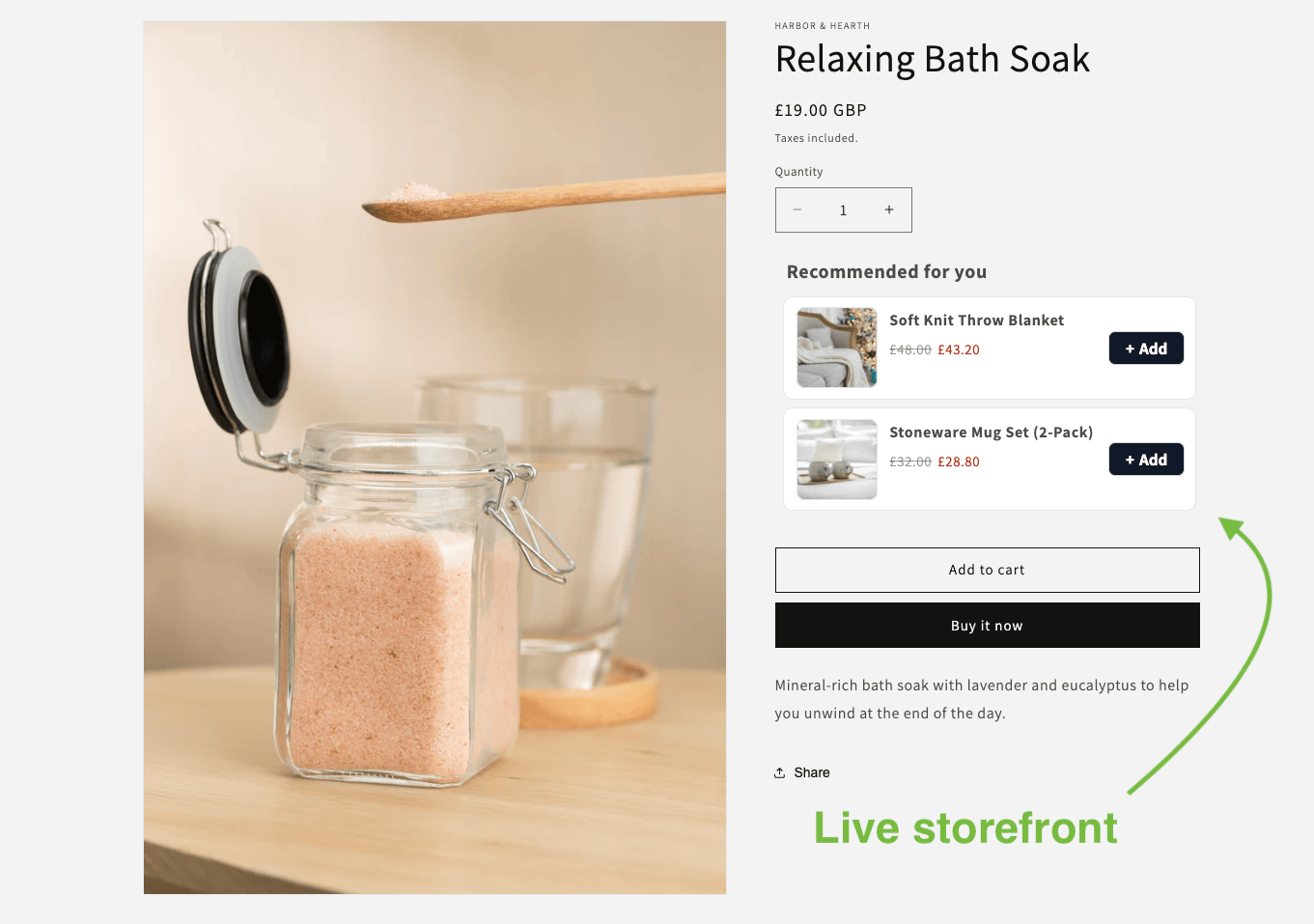
Your offer can now appear on the product pages that match your visibility trigger rules.
If you sell in multiple regions and use translations, you can also translate offer elements via the Edit Translations page.
When translated, select a locale in the editor preview to see how the offer looks in that language.

Creating your first Shopify upsell offer is only the start.
Once it is live, you should track performance and improve it over time.
In the app, you can track how your offers are performing.
Look at:
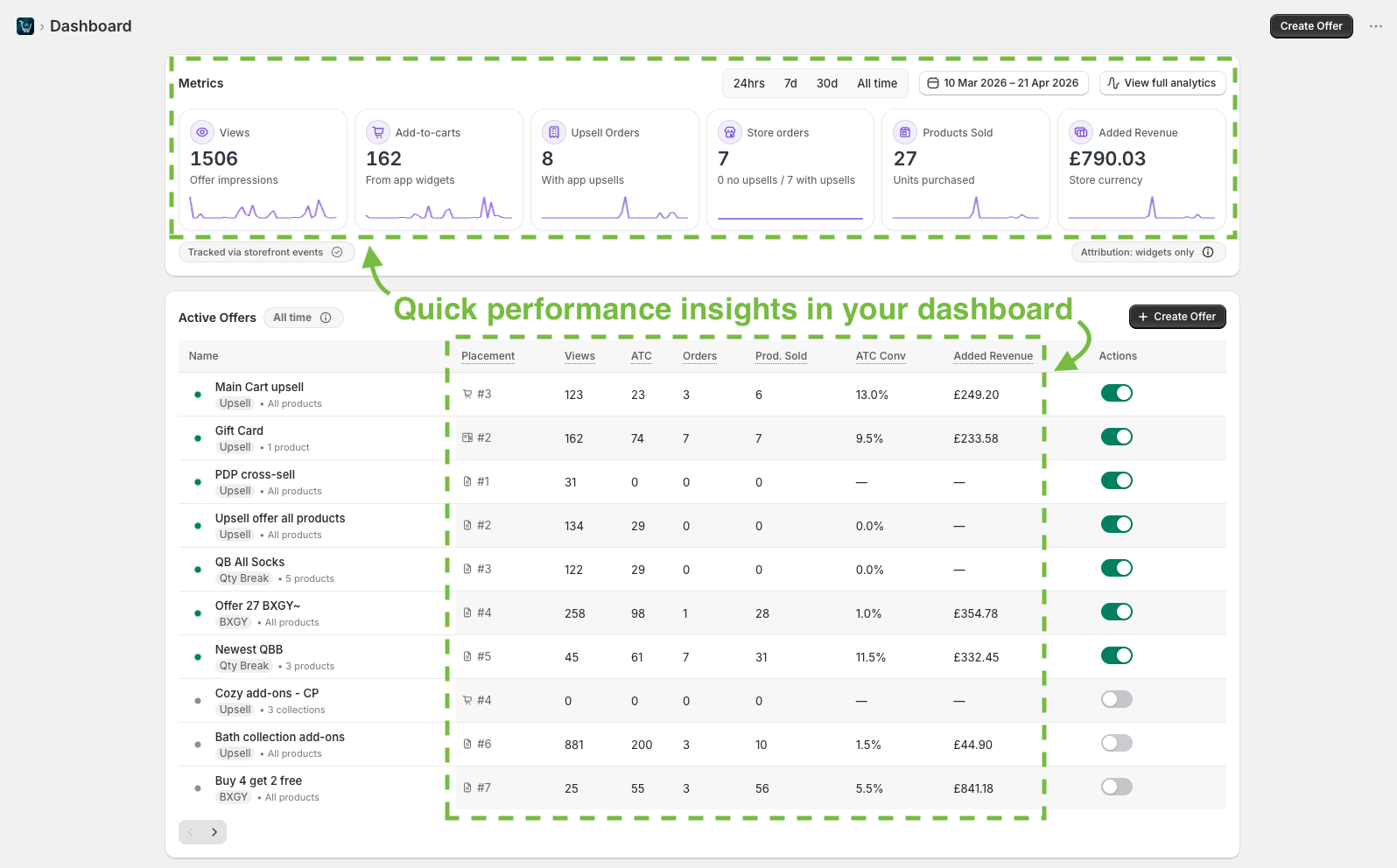
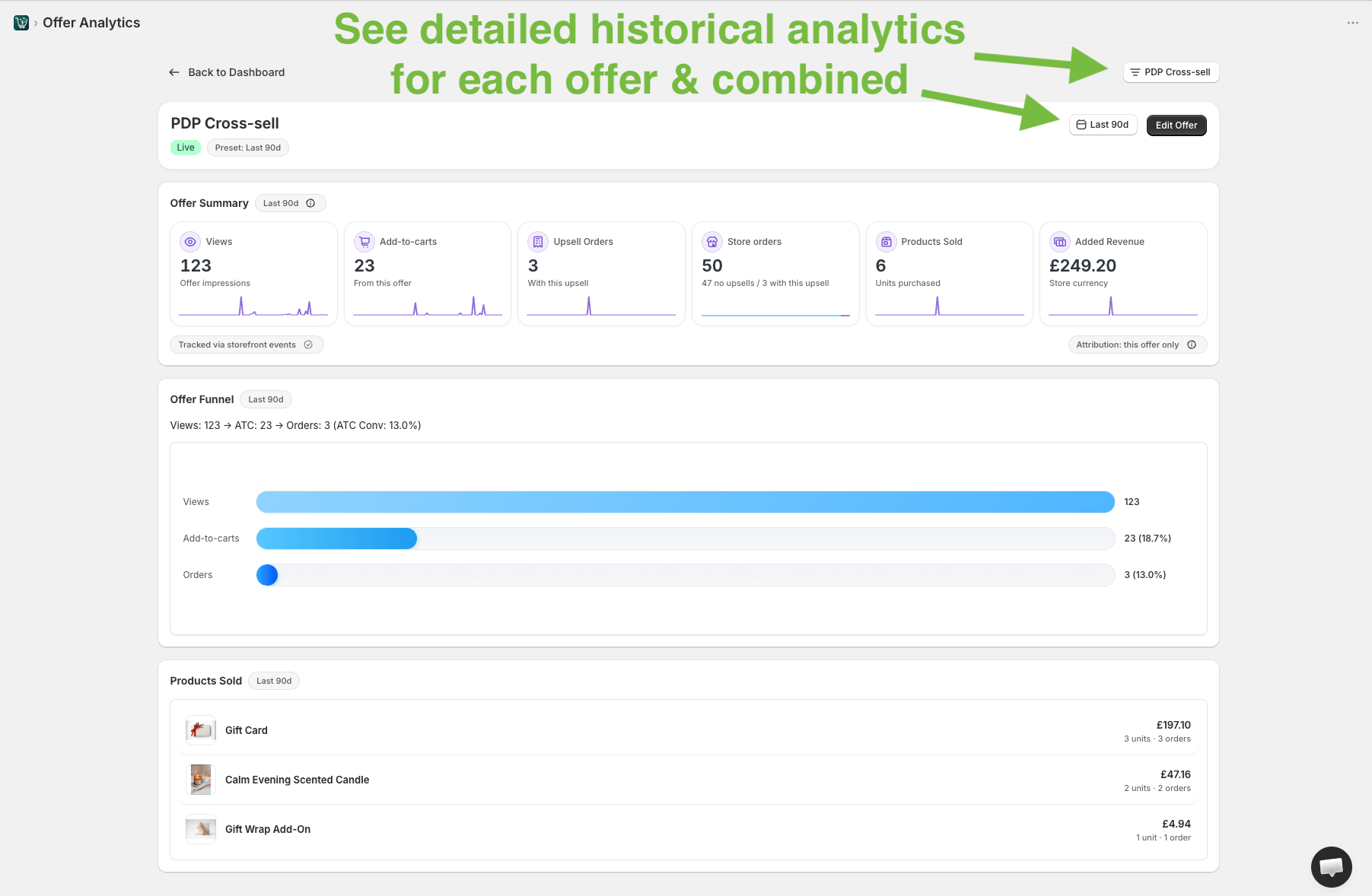
This helps you understand the impact these offers have on your store.
If an offer gets impressions but few add-to-carts, the product may not be relevant enough.
Try improving it by:
Relevant offers usually convert better than broad recommendations.
Product page upsells are great because customers see them before adding the main product to cart. It is a good place for useful add-ons and related products.
But you can also show offers later in the buying journey, and this combination can significantly bump your order value even further.
You can create:


Some products also work better with discount-based offers.
If customers often buy more than one unit, try “Buy more, Save more” offers:
If you sell products that pair well together, try:
For these offers, you can add:


Adding upsell products on Shopify does not need to be complicated.
With AS Upsell & Cross-Sell app, you can create upsells and cross-sells, product add-ons, suggest related products, create Frequently Bought Together offers, and set up discount-based offers without custom code.
Start with one focused offer.
Pick a product or collection that already sells well, add a relevant add-on, and track the results.
Once you see what works, create more targeted offers across your product pages, cart page, and cart drawer.
